![PS_Logo_Stager_Orange.png]](https://support.pestshare.com/hs-fs/hubfs/PS_Logo_Stager_Orange.png?height=50&name=PS_Logo_Stager_Orange.png)
What is the Action Center?
When a resident submits a pest control request for a pest that is not covered under their standard package — but still requires a closer look — that request lands in the Action Center with a status of 'Needs Review.' The Property Manager (PM) is in full control of what happens next.
Pest Share will send the PM an email notification with a Service Charge Review link. Clicking that link takes them directly to the request — no login required — where they can review the details and take action.
Quick Reference
- Triggered By: Resident submits a request for a non-covered or borderline pest
- Notification: Pest Share emails the Property Manager with a review link
- Example: Pest Control Request #16578 — Service Charge Review — $220.00
- Time to Act: 3 - 5 business days (the property manager determines)
- Your Options: Accept Charges, Reject Charges, or Send to Resident
- Resident Notified: Pest Share emails the resident to inform them if the PM has accepted the charge or rejected the charge
How It Works — Step by Step
Step 1: Resident Submits a Request That Needs Review
-
A resident submits a pest control request through pestshare.com.
-
The pest falls outside the standard covered package and requires Property Manager review.
-
The request is flagged with a 'Needs Review' status in the Pest Share system.
-
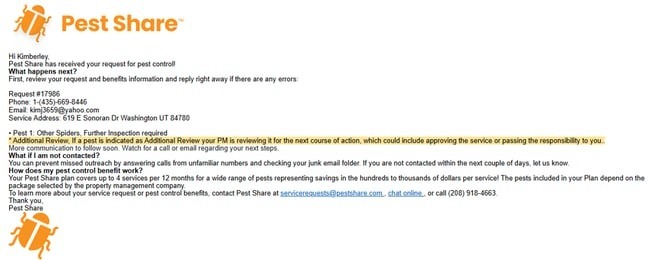
The resident receives a reply for Pest Share indicating the request needs review
Step 2: Property Manager Receives an Email Notification
-
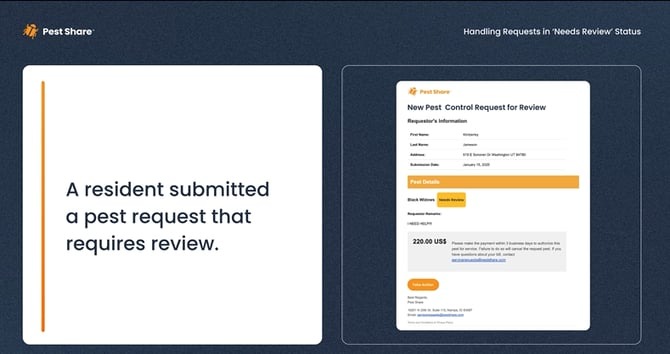
Pest Share automatically sends the PM an email with the subject line and details of the request.
-
Example: Pest Control Request #16578 — Service Charge Review — $220.00 for Pest Control Service.
-
The email includes a direct link to review the service charge
-
Click the "Take Action" link in your email to open the Service Charge Review page.
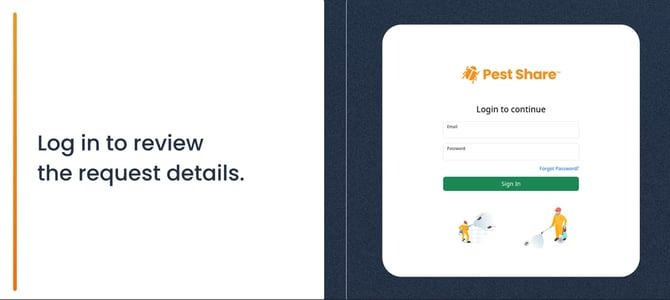
- The PM logs into their action center portal
Step 3: Open the Request & Review the Details
-
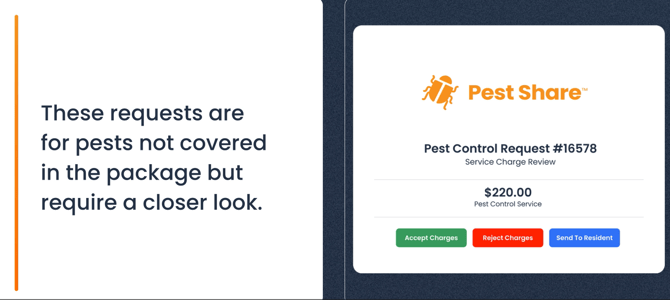
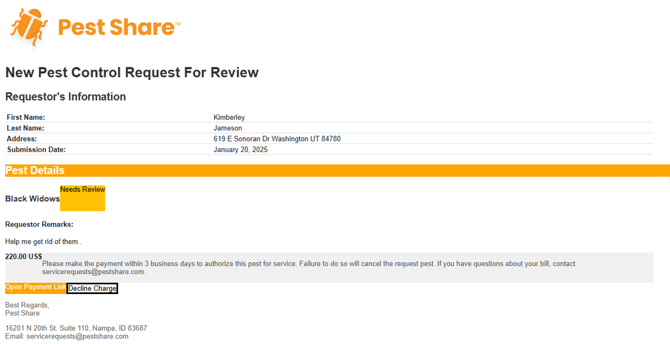
You will see the request number, type of pest, service charge amount, and three action buttons.
-
The PM decides whether to pay for the service, pass it back to the resident, or reject it.
-
Review the information carefully before taking action — your decision is recorded with a timestamp.
Step 4: Choose One of Three Actions
-
Accept Charges — The PM agrees to pay for the service, taking responsibility for the cost.
-
Reject Charges — The service request will be canceled.
-
Send to Resident — The PM determines that the resident is responsible and pass for the cost of the service, and passes the request back to them.
Step 5: Confirmation is Recorded
-
Once you take action, a confirmation screen appears: "Thank you! You have reviewed and taken action on these charges."
-
The action is timestamped (e.g., 'Actioned at January 17th 14:01 Eastern Standard Time').
-
Pest Share updates the request status and moves it out of 'Needs Review.'
Step 6: Resident is Notified
-
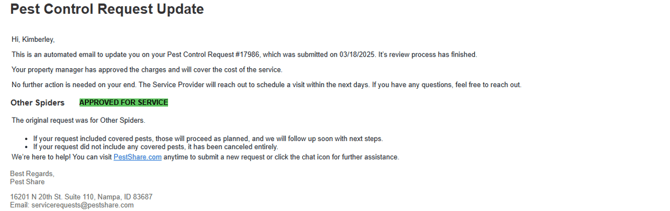
The resident will receive an email explaining which action the Property Manager chose.
-
If accepted, the email will inform the resident that the property manager has approved the request and they will be resonsible for the payment
-
-
If denied, the email will inform the resident the property manager has denied payment of the treatment. The resident will be provided with a link to make the payment if they choose to go forward with the treatment.
-
Your Three Action Options — Explained
Accept Charges
- PM agrees to cover the cost of the pest control service for this request.
- By accepting, the PM takes financial responsibility on behalf of the property owner.
- Pest Share will coordinate the service with the local provider.
- Result: Service is scheduled and fulfilled. The charge is applied to the property.
Reject Charges
- The PM chooses not to cover the cost of the service.
- The work order will be closed and no service will be scheduled.
- This is appropriate when the pest issue is not the property owner's responsibility or when you need to decline for other reasons.
- Result: Work order is closed. No service is performed. No charge is applied.
Send to Resident
- The PM forwards the service charge review to the resident, allowing them to decide whether to proceed and pay for the service themselves.
- This is useful when the pest issue may be the resident's responsibility (e.g., pests resulting from resident conditions).
- Result: Resident receives the review link and can accept or decline the charge directly.
Action Center Demonstration
Tips for Property Managers
-
⏱️ Act Promptly: The PM will have 3 -5 business days to respond. After that window expires, the service request will be canceled. Taking an action quickly keeps the resident informed and the request moving forward.
-
Share access to the action center with your designated team so that requests will be reviewed promptly.
-
📋 When to Reject vs. Send to Resident: Use Reject Charges when you are certain the property owner is not responsible for the pest. Use Send to Resident when the pest issue may have been caused or worsened by the resident's habits or living conditions.
-
🔒 No Login Needed: Once you have created your portal, the review link in your email takes you directly to the action page — there's no further login required.
-
📸 Check the Pest Photo First: Before accepting or rejecting, make sure you've reviewed any pest photos included with the request. This helps you make a confident decision and avoid disputes later.
Need Help?
If you have questions about a specific request in 'Needs Review' status, your Pest Share Client Success Manager is available to help you:
- Clarify what the charge covers and whether it falls under your plan
- Walk you through the decision if you're unsure which action to take
- Contact the resident on your behalf if needed
Support Resources
- Help Center: support@pestshare.com
- Submit a Request: pestshare.com
Pest Share Academy | Knowledge Base Article | pestshare.com